01Install delayed
Download the installer from the downloads page. Run it. Windows SmartScreen may complain on first launch; click More info → Run anyway. We're working through code-signing.
delayed runs in the system tray by default. Click the tray icon to open the mini player. Right-click for full Settings.
02Point OBS at delayed
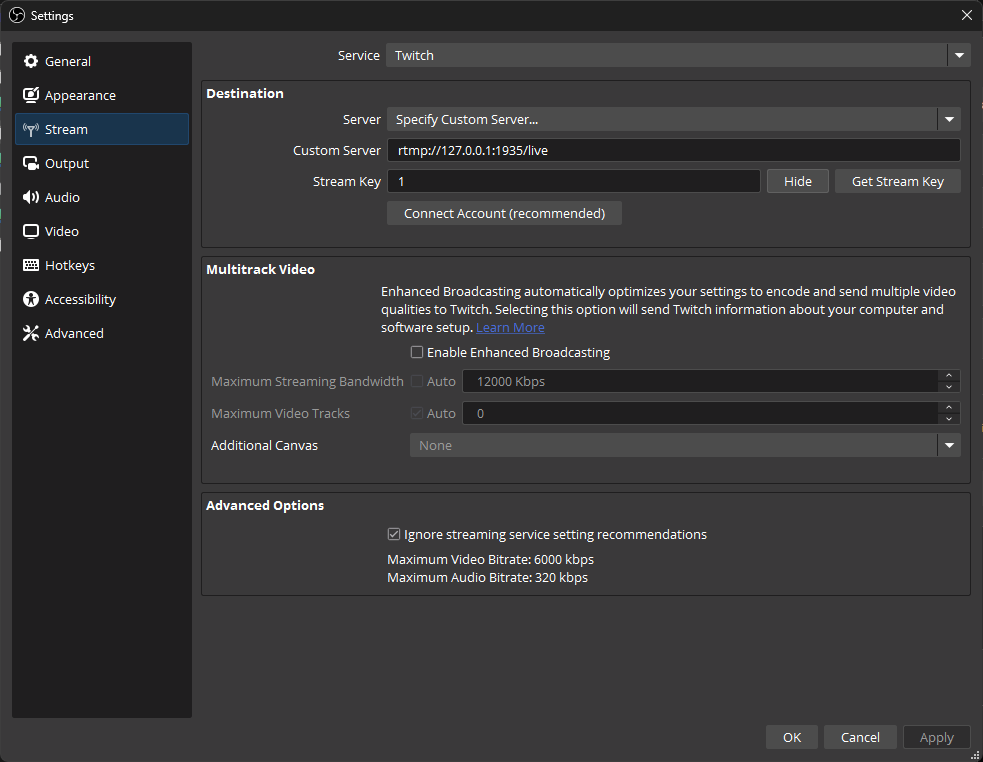
Open OBS → Settings → Stream. Set the following:
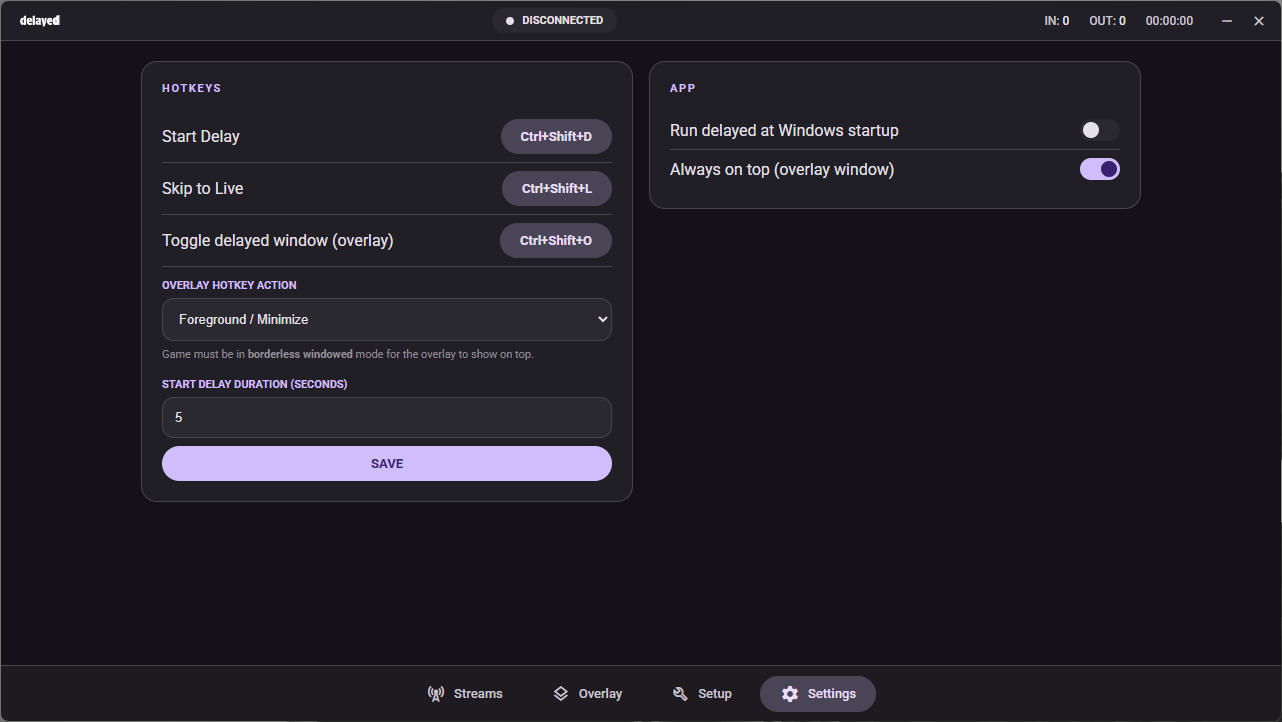
Click OK. That's the OBS side done. Every encoder you'll ever use, you'll only ever point at rtmp://127.0.0.1:1935/live.
03Add your destinations
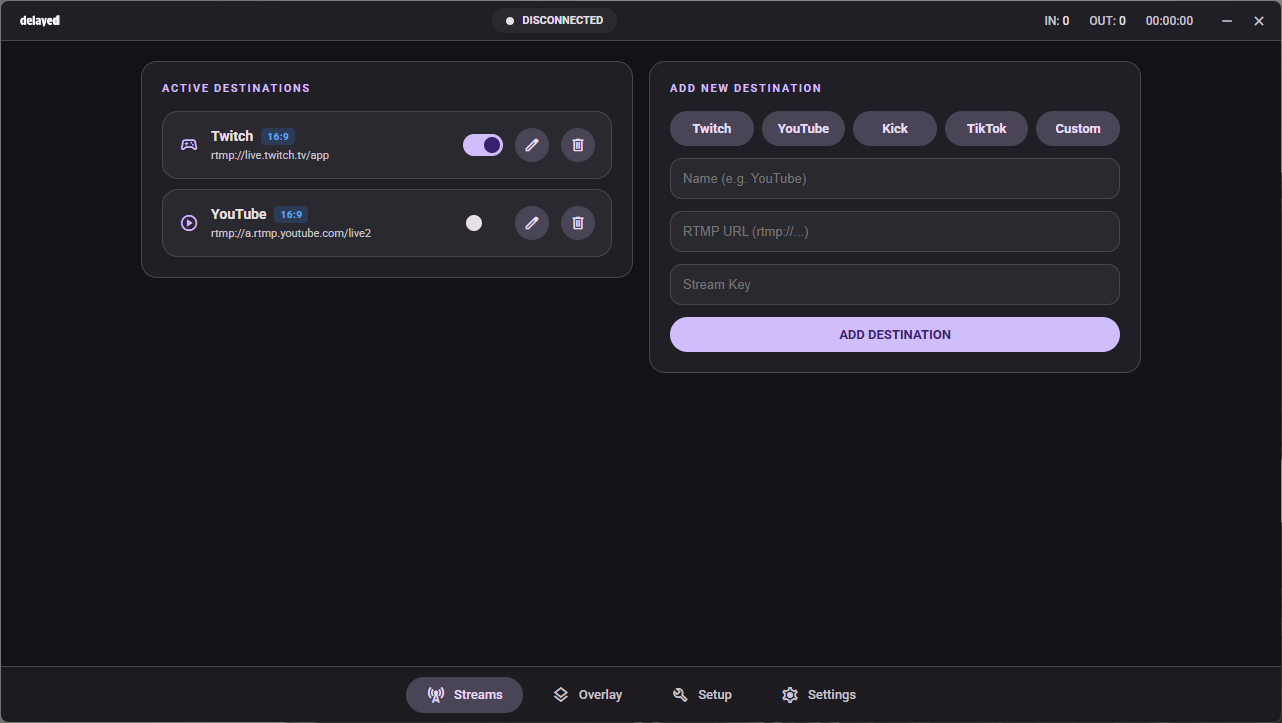
Open delayed → Streams. Click Add destination and paste in your platform's Server URL and Stream Key. Repeat for each platform you broadcast to.
Where do I find my stream keys?
● Twitch
Settings → Stream → Primary Stream key. Copy the full live_… string.
● YouTube
Studio → Go Live → Stream → Stream key. Use a persistent key for multistreaming.
● Kick
Dashboard → Stream Settings → Stream Key.
● TikTok
TikTok Live access required (1k followers or grant). Web "Live Center" → RTMP option.
04Set a delay
In the mini player, click a preset (0s, 15s, 30s, 60s) or type a custom value into the "Custom seconds…" field and hit SET. The delay applies to every destination simultaneously; that's the whole point. Maximum delay is 5 minutes (300 seconds).
How much delay should I use?
- Ranked / comp gameplay: 60–90s is plenty. Most snipe attempts come from chat or external relays inside ~30s.
- Tournaments: set whatever the org mandates (commonly 3 minutes for ALGS, VCT, etc; capped at 5 in delayed).
- Tournaments: check your org's rules. Most require 3 minutes; delayed supports up to 5.
05Go live
Hit Start Streaming in OBS as you normally would. delayed's mini player will show:
- CURRENT DELAY: the active delay value
- UPTIME: wall-clock time since OBS connected
- Status text: DISCONNECTED → LIVE when OBS connects → BUILDING while the buffer fills → DELAYED once it's full
While the buffer fills, your destinations stay paused; that's expected. Once the buffer is full, every platform releases simultaneously.
When the round's over, hit SKIP TO LIVE. delayed flushes the buffer and you catch back up to live without restarting anything.
06Stream Deck plugin
Free download from the Companion downloads section, or in-app via Settings → Integrations. Double-click the .streamDeckPlugin file and Stream Deck installs it. Available actions:
- Skip to Live: flush the buffer in one tap
- Set Delay: 15s / 30s / 60s presets, plus a Custom Delay key with its own seconds field
- Status: read-only key showing live, offline, or current delay
- Refresh Connection: re-poll if the plugin is showing stale state
127.0.0.1 today. Community integration guides land on Discord as users ship them.07Add the OBS overlay (optional)
delayed ships a tiny browser-source overlay that shows current delay, connection state, and a heartbeat dot. Handy for letting viewers know the stream is on a delay.
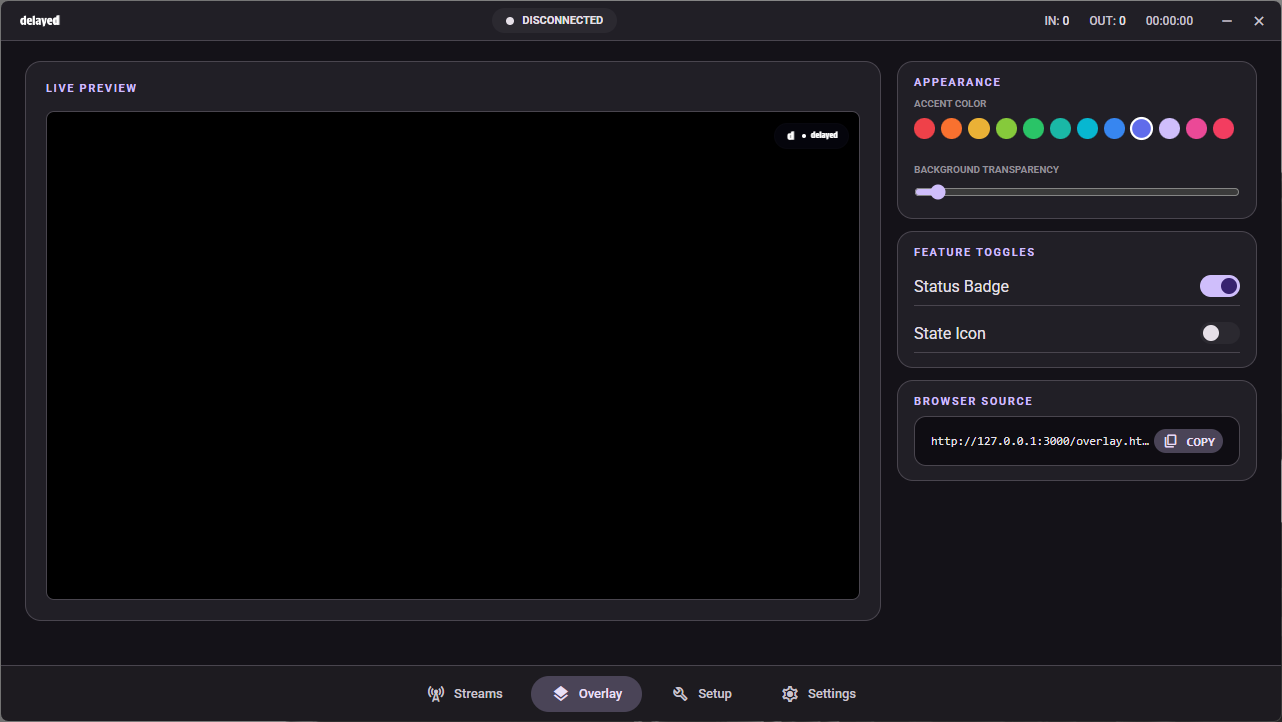
- Open delayed → Overlay. Pick an accent and what to show.
- Copy the local URL (
http://127.0.0.1:<port>/overlay). - In OBS: add a new Browser Source. Paste the URL. Set width 320, height 80. Done.
08Chatbot integration (optional)
If you want a !delay chat command that returns your live delay state, delayed publishes status to a public URL on delayed.stream that any cloud chatbot can fetch. Off by default; enable in Settings.
- Open delayed → Settings → Chatbot.
- Toggle Publish chatbot status on. Copy the URL.
- Paste into your bot's URL-fetch command (examples below).
The URL response is plain text: "Live", "Delayed 30s", "Building delay (30s)", or "Offline". Append ?format=json for a structured response.
Common chatbot setups
Nightbot
StreamElements
Streamer.bot (runs locally; works either with the chatbot URL or directly with the local API at http://127.0.0.1:3000/api/chatbot)
- Add a new Twitch Bot Command with trigger
!delay. - Add a Fetch URL sub-action pointed at your chatbot URL.
- Add Send Message with content
%response%.
Moobot, Wizebot, Fossabot: same pattern as Nightbot. Most cloud bots have a "fetch URL into command" feature; documentation varies.
09Twitch VOD Track — DMCA protection
When using delayed, OBS sends to a local Custom RTMP server which hides Twitch-specific options like VOD Track. delayed solves this internally: when VOD Track is enabled on a destination, it injects a silent second audio track into the stream. Twitch records track 2 in VODs, so your VODs contain silence instead of your live audio — no DMCA strikes.
Your live stream is unaffected. The live audio track is passed through at zero CPU cost. Only a silent 32 kbps track is generated and added alongside it.
- In delayed, go to Streams and click the edit icon on your Twitch destination.
- Check VOD Track (DMCA Protection) and click Save.
- Restart the stream. The destination card will show a VOD TRACK badge.
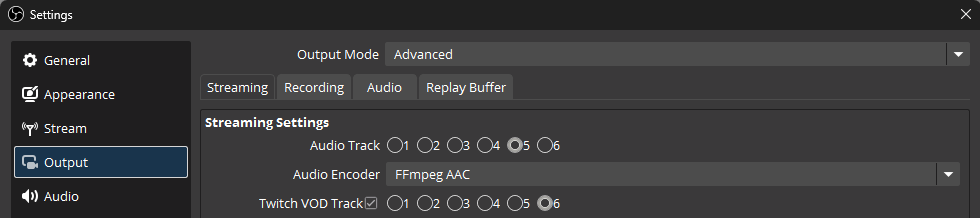
Keep OBS on Custom... with server rtmp://127.0.0.1:1935/live/live as normal — no OBS changes needed.
10Aitum Vertical (optional)
If you stream TikTok with a 9:16 vertical canvas using Aitum Vertical, point its output at delayed's vertical input instead of directly at TikTok. delayed buffers the vertical feed in sync with your horizontal stream, so both go out with the same delay.
delayed always listens for a vertical input on port 1936. No setting to enable — it's always on.
- Open Aitum Vertical → Settings → Streaming.
- Set Server to:
- Check Enabled and apply.
- In delayed, add your TikTok destination and set its input to Vertical (9:16). delayed will forward the Aitum feed to TikTok in sync with your delay.
rtmp://127.0.0.1:1935/live as normal. Aitum reads from OBS and outputs a separate vertical feed to port 1936. Both feeds are independent; delayed buffers each one and pushes them out in sync.11Troubleshooting
OBS says "Failed to connect to server"
delayed's local listener probably isn't running. Open delayed (system tray icon), confirm Settings shows rtmp://127.0.0.1:1935/live as active. If not, restart the app. If still not, Windows Firewall sometimes blocks the local listener; allow delayed.exe through Private networks.
Buffer never fills past 0s
OBS isn't actually pushing bytes. Double-check your Stream settings: Service: Custom..., Server: rtmp://127.0.0.1:1935/live, then click Start Streaming in OBS, not just Start Recording.
OBS says "No config URL available for the current service"
OBS-side error, not delayed. Two fixes, in order:
- Disable Multitrack Video (a.k.a. Enhanced Broadcasting) in OBS → Settings → Stream. It's a Twitch-specific feature that fetches a config URL from Twitch's API even when Service is Custom; incompatible with any custom RTMP server.
- Clear any leftover Twitch / YouTube stream key from the Stream Key field. Old keys saved in the profile from a previous configuration trigger the same error.
One destination keeps dropping
That platform is rejecting the stream. Most common: an expired stream key, a region mismatch (TikTok), or a stream quality outside the platform's accepted range (YouTube hates >9000 kbps without a verified channel). Check delayed's Streams panel for the platform-side error.
Delay seems off
The delay clock is wall-clock accurate. If chat feels out of sync with video, you're likely seeing platform-side ingest jitter (sub-second) plus your own player latency on the platform side, which compounds.